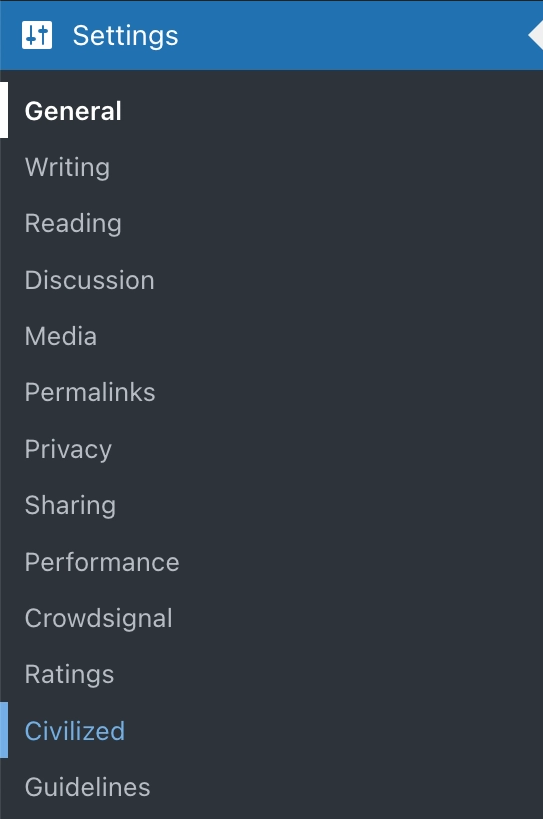
If your website runs on WordPress, install our plugin instead of pasting any code. Once it's installed and turned on from the Civilized settings page, the plugin handles the chat widget, search bar, and Contact Us link for you — you won't need to copy embed codes from your Admin Dashboard at all.
There are two parts to getting the plugin running. Don't stop after Part 1 — the plugin won't do anything until you complete Part 2.
Part 1 — Install the plugin
- Download the plugin. Save the civilized-embed.zip file to your computer.
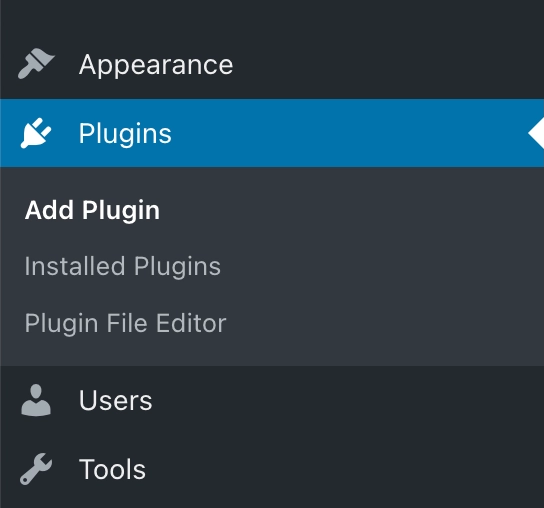
- In the WordPress Dashboard, choose Plugins in the left menu, then press Add Plugin at the top of the page.
- Press Upload Plugin (or Install, depending on your WordPress version).
- Press the Browse button — or drag the file in — and select the civilized-embed.zip file you just downloaded.
- Choose Installed Plugins in the left menu and confirm Civilized is listed. Activate it if it isn't already active.
Part 2 — Turn it on from the Civilized settings page (required)
- In the left menu, go to Settings → Civilized.
- Press the Check Status button. That's it — once it confirms your domain is approved, the plugin switches to ON automatically.
From this same Settings → Civilized page you can also turn the chat widget on or off, learn how to add the search bar, and copy your Contact Us link. Everything is explained right on the screen.